
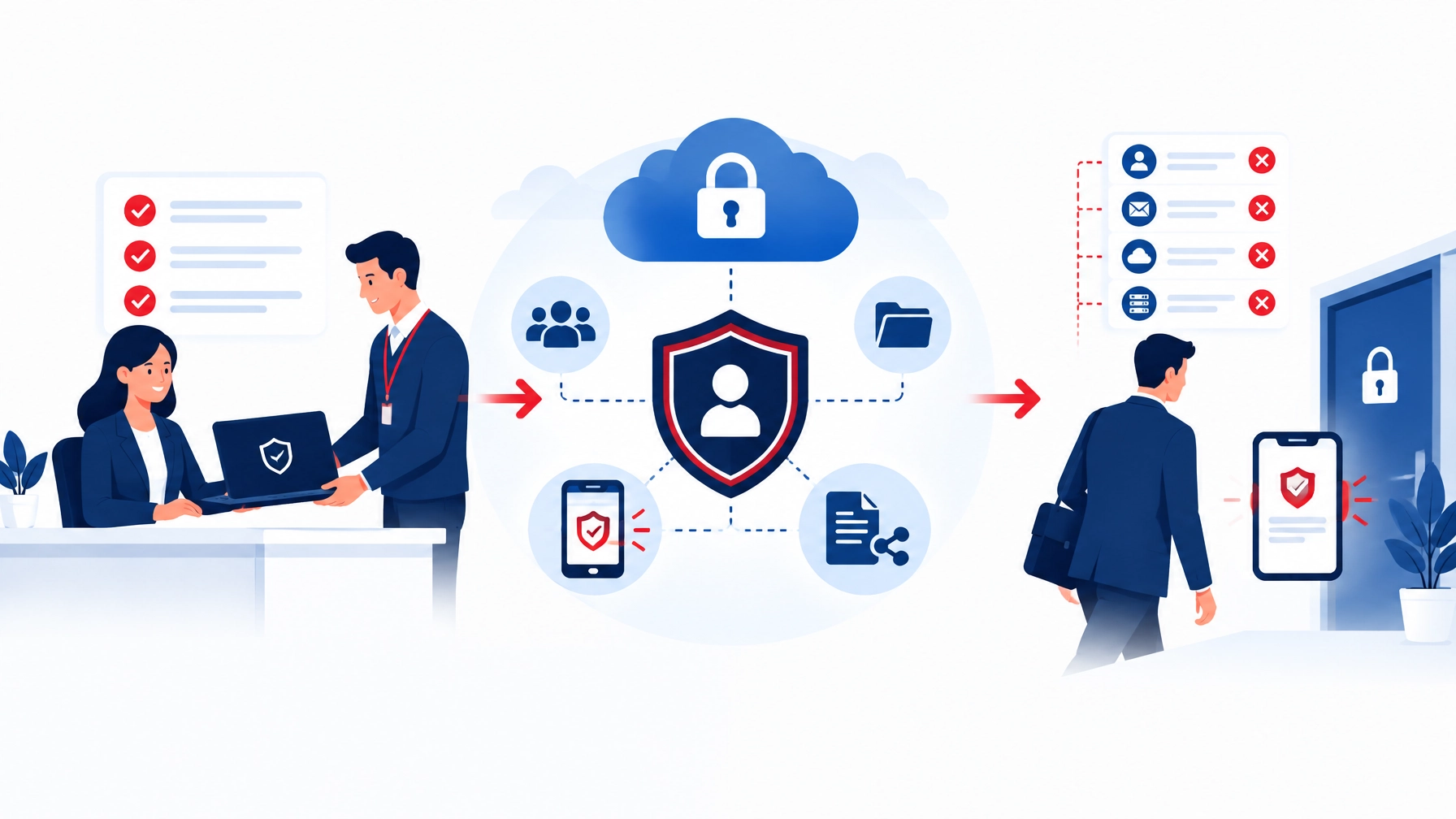
A new starter should be productive on their first day. A leaver should lose access on their last.
That sounds straightforward. In practice, many businesses have a clear process for issuing a laptop but no reliable process for removing access. A former employee may still have access to email, Microsoft 365, cloud applications, VPNs, shared passwords or building systems.
Leavers retaining access is one of the most common and most dangerous gaps we see in business IT support.
The answer isn't a complicated policy document. It's a repeatable joiner, mover and leaver process. This checklist covers the key steps.
Why onboarding and offboarding need the same attention
Onboarding is about giving people the access they need to work.
Offboarding is about removing that access before it creates a problem.
Both processes affect:
- Business data
- Customer and employee information
- Company devices
- Software licences
- Email and shared files
- Phone systems
- Physical security
- Audit records
The NCSC recommends formal identity and access management, including a process for joiners, movers and leavers. The ICO also expects organisations to control access to personal data and remove access when staff leave or change roles. Its access control guidance is a useful reference for UK businesses.
The practical principle is simple: give access based on the role, then remove or change it when the role ends.
Before a new starter arrives
Good onboarding starts before day one. Last-minute setup creates avoidable delays and often leads to shortcuts.
Starter checklist
- Confirm the employee's full name, start date, job title, department and manager.
- Confirm whether they'll work in the office, remotely or across multiple sites.
- Identify the systems and data needed for the role.
- Order the laptop, monitor, headset, phone and other equipment.
- Check that required software licences are available.
- Create a role-based access profile.
- Prepare the email address and user account.
- Set up MFA before the first login.
- Prepare access to shared drives, cloud storage and collaboration tools.
- Set up the desk, Wi-Fi and phone or VoIP extension.
- Prepare security and acceptable-use guidance.
- Agree who will approve access requests.
- Record the planned setup in a ticket or onboarding form.
The access profile should be based on the job, not copied from another employee. Copying a colleague's permissions can give a new starter access to systems they don't need.
This is the principle of least privilege: we provide enough access to do the job, but no more than necessary.
It also makes future changes easier. When someone moves from sales to finance, we can remove the old role and apply the new one instead of trying to find every permission manually.

Day one: give access safely
The first login is an important security moment. It shouldn't be treated as a quick handover of a laptop and password.
Day-one checklist
- Give the starter their device and accessories.
- Confirm the device is encrypted and protected.
- Check that operating system updates are installed.
- Confirm antivirus or endpoint protection is active.
- Guide the user through their first login.
- Make sure they change any temporary password.
- Enrol their MFA device or authenticator app.
- Set up a backup MFA method where appropriate.
- Confirm email and calendar access.
- Confirm access to the correct shared folders and drives.
- Check access to role-specific applications.
- Confirm VPN access if remote work requires it.
- Test the phone, extension, voicemail and call routing.
- Add the employee to the correct distribution lists and Teams channels.
- Explain how to contact the IT helpdesk.
- Explain how to report suspicious messages or lost devices.
- Confirm that security and acceptable-use policies have been read.
MFA should be enabled from the start, not added later. The NCSC recommends MFA for corporate online services, particularly email, cloud systems and administrative accounts. The NCSC MFA guidance explains the main controls.
We should also check what the starter can't access. Excessive access is a risk, even when it was granted with good intentions.
The first week: check the setup
A new employee may not know which access is necessary until they start doing the work. A short follow-up prevents small issues from becoming permanent permissions.
First-week review
- Ask whether the user can access all required systems.
- Remove any access that isn't needed.
- Confirm MFA is working correctly.
- Check that the device is receiving updates.
- Confirm security training is complete.
- Review access to customer, finance, HR or other sensitive data.
- Confirm shared mailbox and calendar access.
- Check distribution lists and team channels.
- Record any changes made.
- Set a date for a later access review.
This review is particularly important for contractors, temporary staff and employees who work across departments.
When someone changes role
Internal moves are often missed because the person doesn't technically leave the business. Their risk can still change significantly.
A move from one department to another may require:
- Removing old shared-drive permissions
- Removing access to previous customer or financial data
- Changing application roles
- Reassigning approval rights
- Updating email groups and distribution lists
- Changing their phone extension or call routing
- Reviewing admin access
- Issuing a new device or software licence
Treat a role change as a smaller offboarding and onboarding event. The old access should be removed before the new access is added where possible.
Offboarding: the access must end immediately
Offboarding needs a clear trigger. HR or a manager should tell the person responsible for IT when the leaving date is confirmed.
The process should record:
- Employee name
- Last working date and time
- Whether the departure is planned or immediate
- Manager responsible
- Systems and applications used
- Devices issued
- Shared passwords known
- Physical access held
- Data and mailbox ownership
- Person approving completion
For a planned departure, access should be removed at the agreed time on the last working day. For an immediate departure, it should happen at once.
Don't wait until the next morning. A former employee may still have active sessions, saved passwords, mobile access or valid tokens.
Account and access revocation checklist
At the agreed time:
- Disable the main user account.
- Revoke active Microsoft 365 or cloud sessions.
- Remove VPN and remote-access permissions.
- Disable email access.
- Remove access to Microsoft 365, Google Workspace or other cloud platforms.
- Remove access to CRM, finance, HR and project systems.
- Remove access to file-sharing services and customer portals.
- Remove administrator and elevated permissions.
- Remove the user from distribution lists, Teams channels and shared mailboxes.
- Disable remote-control tools.
- Remove registered MFA devices and authentication methods.
- Review temporary accounts created for projects.
- Change shared passwords the person knew.
- Rotate shared keys, tokens or access codes where needed.
- Remove access to social media and other business accounts.
- Remove door access, alarm codes, keys and entry cards.
Disabling the main email account is not enough. Many applications use separate accounts or saved sessions. A proper offboarding process follows the full list of systems.

Recover and protect company equipment
The physical device can contain locally stored files, saved browser sessions and authentication tokens.
Equipment checklist
- Recover laptops, desktops, tablets and phones.
- Recover security keys, access cards and tokens.
- Recover monitors, headsets and other company equipment.
- Confirm whether any equipment is at home or with a third party.
- Remove company data from approved personal devices.
- Lock or wipe lost equipment remotely where possible.
- Back up required business data.
- Securely wipe devices before reassigning them.
- Record the condition and location of each asset.
If a device can't be recovered, treat it as a security issue. Revoke its access, change relevant passwords and check whether remote wipe is available.
Transfer files, email and responsibilities
Deleting an account without checking ownership can create a second problem: important business information may disappear with it.
Before closing the account:
- Transfer ownership of important files.
- Move shared documents into the correct business location.
- Transfer ownership of calendars and meeting records.
- Review OneDrive, SharePoint or other cloud storage.
- Decide whether the mailbox needs a short-term handover.
- Set a suitable automatic reply if required.
- Avoid forwarding mail indefinitely.
- Transfer customer, supplier and project records.
- Reassign approval tasks and workflows.
- Record who now owns each key responsibility.
Mailbox and file retention should follow business needs, contractual requirements and data protection policies. We should keep what the business needs, but avoid retaining personal data without a clear reason.
Don't forget phones, doors and call routing
IT offboarding isn't limited to computers.
Check:
- VoIP extension and direct-dial number
- Hunt groups and call queues
- Voicemail access
- Mobile phone and SIM
- Shared phone-system accounts
- Door access and alarm codes
- CCTV or access-control accounts
- Office keys and entry cards
- Meeting-room and booking systems
Our telecom support service covers VoIP, SIP, PBX systems, call routing and the network behind them. This matters when a leaver's number needs to be reassigned or customer calls need to reach another member of the team.
Keep a record for audit
A completed checklist is useful evidence that the process was followed.
Record:
- Who requested the offboarding
- When access was removed
- Which systems were checked
- Which devices were recovered
- Where files and mailboxes were transferred
- Which licences were cancelled or reassigned
- Which passwords or codes were changed
- Who approved completion
- Any outstanding actions
Keep the record with the employee's HR or IT documentation, with access limited to authorised staff.
A quarterly review can also identify old accounts, unused licences, inactive shared mailboxes and excessive permissions.

How managed IT services can help
A checklist is a good starting point. The real benefit comes from making it repeatable.
Managed IT services can help us:
- Build joiner, mover and leaver workflows
- Create role-based access profiles
- Enforce MFA
- Review permissions
- Manage devices and software licences
- Secure Microsoft 365 and cloud applications
- Revoke access remotely
- Support password and credential changes
- Maintain audit records
- Provide practical security advice
Our cyber-security services include identity and access controls, MFA, role-based access, endpoint protection, vulnerability reviews and secure onboarding and offboarding processes.
We can also provide remote support when a starter needs access set up quickly or a leaver must be locked out outside normal working hours. Where the process needs a wider review, our provider-agnostic IT consulting approach focuses on practical improvements rather than unnecessary upgrades.
The uncomfortable question
If someone left your business today, could we confirm within minutes that they no longer have access to:
- Email and Microsoft 365?
- VPN and remote tools?
- CRM and finance systems?
- Shared passwords?
- Cloud files?
- Phone systems?
- Door access and alarm codes?
- Personal devices used for work?
If the answer isn't clear, the process needs attention.
A documented checklist won't prevent every incident. It will make the right action quicker, more consistent and easier to verify. That is a good next step for any business handling staff changes and sensitive information.
If we need help reviewing or improving the process, contact Your IT Specialist for practical business IT support.
