
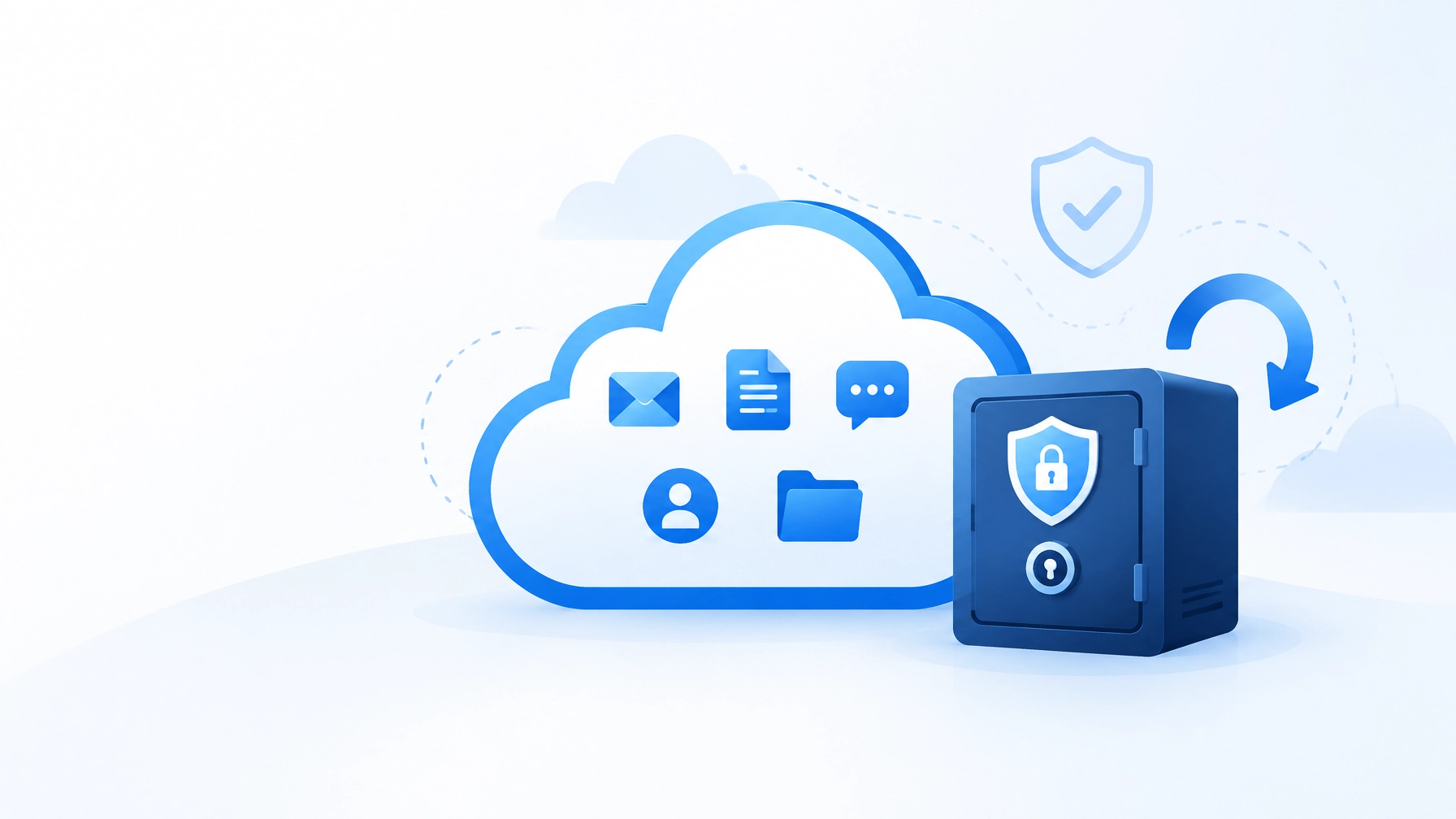
Microsoft 365 keeps businesses running from almost anywhere. Email, documents, meetings, chat and user accounts all sit in the cloud.
That convenience can create a risky assumption: Microsoft 365 backs everything up for us.
It doesn’t, at least not in the way most businesses mean when they talk about backup.
Microsoft protects the availability and resilience of its service. We’re still responsible for protecting our data, setting retention rules and making sure we can recover after deletion, ransomware or a serious mistake.
Microsoft describes this as the shared responsibility model. Its Microsoft 365 Backup FAQ confirms that offering additional backup tools hasn’t changed that responsibility.
What Microsoft protects, and what we still need to protect
Microsoft manages the infrastructure that delivers Microsoft 365. This includes its data centres, platform security, service resilience and built-in redundancy.
That helps if a Microsoft data centre has a problem. It doesn’t necessarily help if:
- A user deletes important email and empties their deleted items
- A staff member overwrites a document with incorrect information
- A compromised account deletes files or changes permissions
- Ransomware encrypts files and synchronises those changes
- A departing administrator removes important settings
- We need to meet a five- or seven-year retention requirement
- We need to restore one mailbox, folder or file from a known point in time
Microsoft 365 is designed to be highly available. It isn’t automatically a complete, independent backup of everything in our tenant.
The National Cyber Security Centre (NCSC) also recommends that organisations use backups designed to resist deletion, corruption and ransomware.

What is actually at risk in Microsoft 365?
A Microsoft 365 backup plan should cover more than just email. We need to identify the data and settings that our business relies on.
Exchange Online and email
Email often contains contracts, customer information, instructions and financial records. A deleted message may remain recoverable for a limited period, but that window isn’t the same as long-term backup.
If a user deletes a message from their deleted items, recovery can become more difficult. The available recovery period depends on the mailbox configuration and Microsoft 365 features in use.
A proper backup should let us restore individual messages, folders or a complete mailbox without restoring an entire tenant.
SharePoint documents
SharePoint may hold the main working documents for a department or the whole business. Files can be deleted, overwritten or moved.
SharePoint recycle bins and version history can help with recent mistakes. They’re useful operational tools, but they’re still subject to retention settings, storage limits and the age of the content.
If a file was changed months ago, we shouldn’t assume that the version we need still exists.
OneDrive files
OneDrive is often treated as personal storage, but business-critical documents can end up there. A user might delete a folder, change hundreds of files or allow a compromised device to synchronise harmful changes.
The OneDrive sync client can make this worse. If ransomware encrypts a local folder, those encrypted files may synchronise to OneDrive. The cloud copy can then reflect the damaged state.
OneDrive recovery features may help us roll back a large number of changes, but we need to know how far back they go and whether they meet our recovery requirements.
Teams files and chat
Teams data is spread across different Microsoft 365 services.
Files shared in a Teams channel are generally stored in SharePoint. Files shared in a private or group chat are usually stored in the sender’s OneDrive. Chat and meeting information can also be associated with Exchange or other Microsoft 365 services.
This matters because protecting Teams means understanding where its content is stored. A backup plan that only covers mailboxes may not cover every Teams file or chat requirement.
Microsoft Entra ID configuration
Microsoft Entra ID, formerly Azure Active Directory, controls identities and access to Microsoft 365.
The risk isn’t limited to user data. We also need to protect or document important configuration, including:
- User and group membership
- Administrator roles
- Conditional access policies
- Multi-factor authentication settings
- Application registrations and permissions
- Device and access policies
- Domain and authentication settings
Not every backup product covers Entra ID configuration in the same way. We should check the exact scope and keep a clear record of critical settings so they can be rebuilt if necessary.
Recycle bins, version history and retention aren’t the same as backup
Microsoft 365 includes several useful recovery features:
- Exchange deleted item recovery
- SharePoint and OneDrive recycle bins
- File version history
- Retention policies
- Legal holds
- Microsoft 365 Backup
These tools have different purposes.
Recycle bins are designed to recover recently deleted content. SharePoint and OneDrive recycle bin retention is commonly around 93 days, but settings and workload behaviour can vary.
Version history helps us undo recent changes to a document. It may not retain every version forever. Older versions can be removed because of library settings, storage limits or retention rules.
Retention policies and legal holds help preserve information for compliance. They don’t automatically create a separate, independent backup copy that’s optimised for fast restoration.
Microsoft 365 Backup now provides additional point-in-time recovery for supported workloads. It can be a useful part of a wider plan, but we still need to check its scope, retention, access controls and recovery process against our business requirements.

What a proper Microsoft 365 backup should provide
For many businesses, a suitable backup should include:
Independent storage
The backup should be stored separately from the production Microsoft 365 environment. This reduces the chance that one compromised administrator account can delete both the live data and its backups.
Long-term retention
The right retention period depends on our contracts, regulations, insurance requirements and business needs. A short recovery window may be enough for a small operational mistake, but not for a dispute involving an old email or document.
Immutable or deletion-resistant copies
The NCSC’s guidance for ransomware-resistant cloud backups recommends protection against malicious editing, overwriting and deletion.
This may include immutable storage, delayed deletion, separate administration and alerts for major changes.
Granular restores
We should be able to restore what we need without replacing everything. Useful options can include:
- One email
- One mailbox
- One folder
- One SharePoint site
- One OneDrive file
- One Teams file
- A complete user account
Granular recovery reduces disruption and helps us deal with small incidents quickly.
Restore testing
A backup that has never been restored is an assumption, not an assurance. We need to test that the data is present, usable and recoverable by the people responsible for it.
Four practical steps to take now
1. Check what retention we actually have
Don’t rely on licensing names or assumptions. Record:
- Which workloads are protected
- How often backups run
- How long copies are retained
- What happens after a user is deleted
- Whether Teams files and chat are included
- Whether Entra ID configuration is covered
- Who can delete or change backups
This review often reveals gaps quickly.
2. Test a restore
Restore a sample email, file and mailbox to a safe location. Check how long the process takes and whether permissions, metadata and file versions are preserved.
A test also shows whether the process is clear during a stressful incident.
3. Document who can restore what
Write down the people and accounts that can manage backups. Use separate administrator accounts, multi-factor authentication and least-privilege access where possible.
We should also plan for the situation where normal Microsoft 365 accounts are unavailable.
4. Set a retention policy
Choose retention periods based on real business requirements. Keep important records for as long as we need them, but avoid keeping everything indefinitely without a clear reason.
Review the policy after major changes, such as a new compliance requirement, merger or application rollout.

Getting Microsoft 365 backup right
Microsoft 365 is a strong platform, but cloud hosting doesn’t remove the need for data protection. It changes how we manage it.
A sensible approach combines Microsoft’s built-in recovery tools with suitable backup, secure identity controls, monitoring and regular restore tests.
At Your IT Specialist, we provide provider-agnostic advice. We can help review Microsoft 365 protection, software configuration and recovery arrangements without pushing a particular vendor.
Our cyber-security services include Microsoft 365 security hardening, vulnerability assessments, patching, access controls, cloud backup and retention reviews, and logs analysis.
We can also support software installation, cloud application management and wider IT changes as part of a practical long-term plan.
The useful question isn’t simply, “Is Microsoft 365 backed up?”
It’s: “If important data disappeared today, could we restore the right information quickly, securely and completely?”
A short review and a tested restore can give us a much clearer answer.
